Five minutes a day to stop reacting blindly in Microsoft Fabric
A practical guide to the Microsoft Fabric Capacity Metrics App to diagnose performance, throttling and CU consumption
In Microsoft Fabric, resource consumption gets smoothed, piles up and sometimes turns into throttling before anyone sees it coming. Reports take longer, refreshes start failing and throttling messages show up without warning. And the inevitable question is always the same:
What is really consuming my capacity?

The answer isn’t in your gut feeling, or in blaming Spark “just because”, or in giving the most used report a dirty look. It’s in your own capacity’s consumption data. And that’s where the Capacity Metrics App comes in.
What is the Microsoft Fabric Capacity Metrics App?
The Capacity Metrics App is an official Microsoft app that collects and visualizes every operation that consumes CUs within a Fabric capacity. It helps you answer three key questions: who is consuming, when they’re doing it and how that consumption impacts overall performance.
Let’s set expectations:
- It will tell you which report, pipeline or notebook is consuming.
- It won’t tell you which DAX measure or which line of Spark code is to blame.
This is the flashlight, not the scalpel.
How to install the Capacity Metrics App
You need the Capacity admin role in Fabric. Without it, you won’t see the data you need.
- Go to AppSource and search for “Microsoft Fabric Capacity Metrics”.
- Click Get it now and install the app in your tenant.
- When you open it for the first time, connect it by entering the Capacity ID (you’ll find it in the Fabric admin portal).
The app keeps data for up to 14 days and isn’t real-time monitoring, but it’s more than enough for the pattern analysis you need.
My 5-minute coffee routine
Before the first “this is slow” ticket comes in, I already know how the capacity is doing. Not because I have superpowers, but because I have a fixed route that takes as long as my first coffee.

One tip before you start: don’t start with the detail. Always analyse 7–14 full days. Jumping straight into a 30-second timepoint without context is like trying to diagnose an illness by looking at a single blood test.
Stop 1 — Capacity Metrics App Health page: the overall traffic light
The first thing I open is the Health page. Two views: Last 24 hours to see what happened last night, Last 1 hour if someone is already reporting problems.
The header cards tell me the real status without me having to interpret anything. Most importantly: whether there’s any capacity under # Throttled capacities, # Interactive rejected or # Background rejected. If those counters are at zero, I breathe. If not, I’m going to need that coffee.
In the Capacity breakdown, the Health column leaves no room for ambiguity:
- Healthy → all good, back to my coffee
- At Risk of Throttling → the 10 min interactive is already above 90%, keep an eye on it
- Throttling → the brake is already on, someone is going to notice
- Interactive / Background Rejection → this isn’t coffee anymore, this is a meeting
I also take a look at Usage variance. High variance with accumulated debt is the signature of a capacity that has been at the limit for days, even without any spectacular peak.
If everything is green, I close the Health page and finish my coffee in peace. If not, I keep going down.
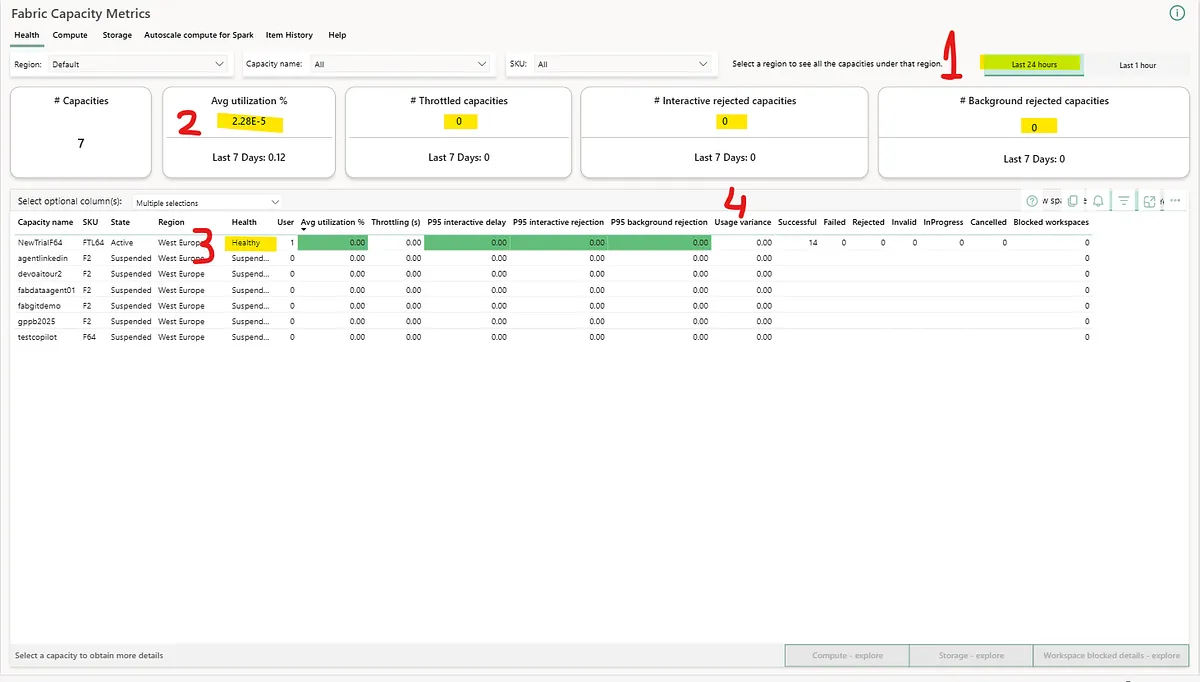 All good, I had my coffee in peace that day. I had a brand-new Trial anyway.
Stop 2 — Compute page: your Fabric capacity’s ECG
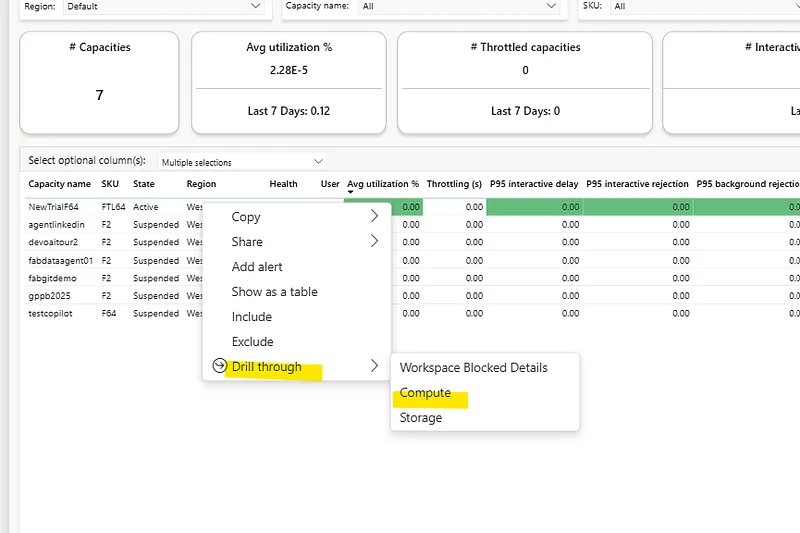
From the Health page: right-click on the capacity → Drill through → Compute.
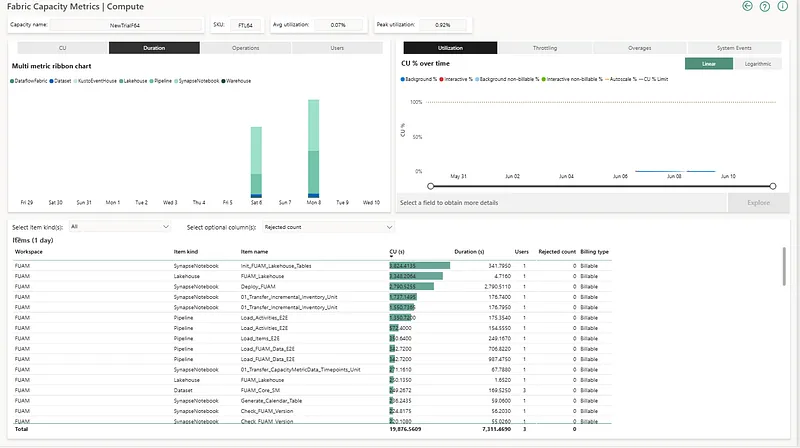 Compute tab
Three tabs, in order:
Utilization. Red (interactive) and blue (background) stacked bars. The grey line at 100% is the real limit of the SKU. If there are columns going over it regularly, I have a structural problem, not an isolated incident.
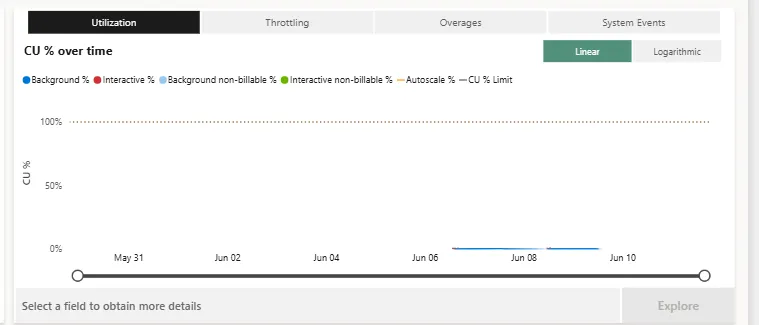 Clearly I didn’t build many demos that week…
Throttling. Tells me how much room I have left before Fabric starts slowing things down:
- Interactive delay → when the 10 min interactive goes over 100%
- Interactive rejection → when the 60 min interactive goes over 100%
- Background rejection → when the 24h background goes over 100%
If I see bars in interactive delay at the same time every morning, something is overlapping that shouldn’t be. Someone scheduled refreshes at the worst possible time.
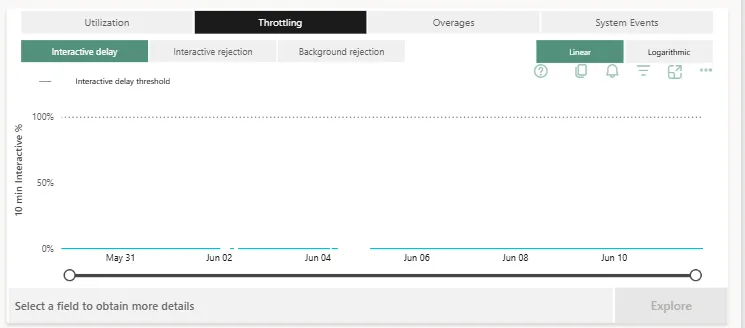 I’m nowhere near interactive delay; in the rest you could watch tumbleweeds roll by
Overages → Carryforward. If the red Cumulative % line doesn’t go down during off-peak hours, the capacity never rests. It’s the quietest and most dangerous indicator at the same time.
At the bottom, the Matrix by item and operation: I sort by CU (s) from highest to lowest and see which workspace and which item takes the biggest share. Orange is moderate degradation; red means something got more than 25% worse than the previous week.
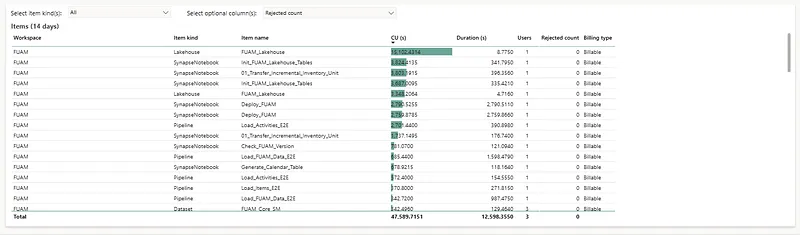
💡 Tip: hover over any row in the matrix to see the breakdown by operation type. It’s one of the few places where you can see that granularity without drilling through.
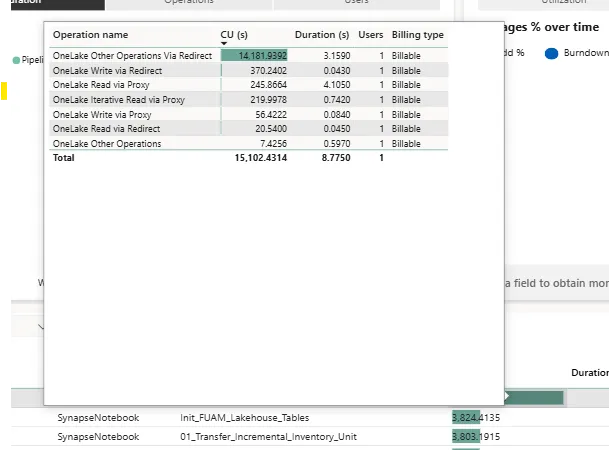 Detail of the operations and their cost
Stop 3 — Timepoint Detail: the interrogation room
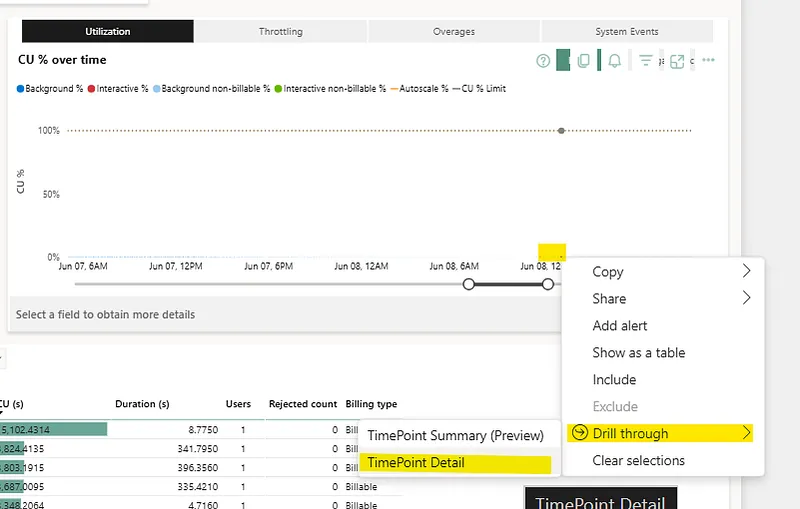 Right-click on the peak → Drill through → Timepoint detail.
First: the Heartbeat chart, a 60-minute window centred on the timepoint. It tells me whether that peak was an isolated spike or a sustained plateau. That difference completely changes the diagnosis.

Then, the tables:
If the problem is interactive: the User column tells me exactly who launched the query, in which workspace and on which item. I sort by Timepoint CU (s) and in five seconds I know whether there’s a user running a heavy report first thing in the morning, an unfiltered SQL query or a notebook someone forgot to stop before going to lunch. If there’s a value in Throttling (s), that user has already noticed it on their screen, even if they haven’t said anything yet.
 And there I am, reviewing FUAM
If the problem is background: a pipeline overlapping with the start of the working day, a badly scheduled semantic model refresh, a nightly Spark job still consuming in the next day’s smoothing. Once I identify it, the decision is simple: do we reschedule it? Do we optimize it? Do we stop it?
 I took screenshots of FUAM on purpose so this other AMAZING tool starts to ring a bell
And my favourite column in the whole app: Minutes to burndown. It tells me how long it will take for the accumulated carryforward to clear. If it’s over 60 minutes with interactive load on top, throttling is almost guaranteed. Not as a hunch: as data.
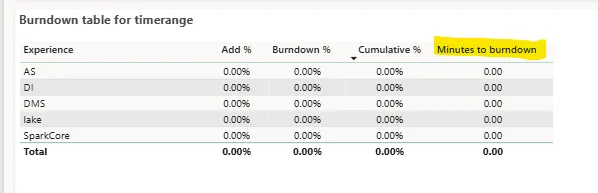 That column is key
The final stroll: finding what nobody is going to report
When there are no incidents, I use the last minutes of my coffee to stroll through the matrix with the 14-day view:
- Items with an orange or red Performance delta on a recurring basis → performance has been degrading for a while and nobody noticed because “it sort of works”
- Workspaces with high Overloaded minutes → they’re paying the price for others’ bursting
- Peaks that repeat at exactly the same time every day → badly designed scheduling, almost always avoidable
Coffee finished. You now know what’s happening, who’s causing it and whether you have enough headroom for the day to go well.
Two cases you’ll see more than once
Overlapping refreshes at peak time. The symptom: red and blue bars at the same time, right at 8:00 or 9:00. The cause: someone scheduled semantic model refreshes without considering that this is the time of highest interactive load. The fix is to stagger refreshes into low-traffic windows, or turn full refreshes into incremental ones where possible.
Reports with visuals or DAX “on steroids”. The symptom: a single interactive item that monopolizes the timepoint’s consumption and shows up in red in the Performance delta. The cause: a report with too many complex visuals, unoptimized DAX measures or a model that forces a full scan on every interaction. The Capacity Metrics App points you to the culprit; DAX Studio or the Performance Analyzer will tell you why.
Less throttling, more control
The Capacity Metrics App doesn’t fix problems on its own. But it does something much more important: it tells you exactly where to look.
Once you master it, you stop reacting blindly and start managing your capacity with data, judgement and peace of mind. Five minutes a day, a clear route and your coffee still hot.
Fewer mini heart attacks. More control. And a Fabric capacity that, at last, plays on your team.
Useful links
- Ricardo Rincón talks about Capacity Metrics on ADN Fabric (in Spanish) → https://www.youtube.com/watch?v=ETgvOeCHU9c&t=7616s
- What is the Capacity Metrics App?
- Install the Capacity Metrics App
- Understand the Health page
- Understand the Compute page
- Understand the Timepoint detail page
- How throttling works in Fabric
- Evaluate and optimize your capacity
Found it useful? Clap, no account needed. You can clap more than once.
Comments