🔷Azure DevOps — Pipelines and branch policies
How to set up an Azure DevOps pipeline and branch policies so only validated code reaches main in Microsoft Fabric.
In our previous article, we forged our weapons: PowerShell scripts ready to defend quality in Microsoft Fabric. Now it’s time to take the battle to our Azure DevOps dojo. We’re going to set up our Pipeline and branch policies so they act as automatic guardians of our code.
The mission? Make the main branch an impenetrable fortress: only code that passes every validation can be merged. For the dev branch, we’ll apply rigorous control but with flexibility: errors will be flagged, but the development flow can continue if a supervisor approves it, keeping things agile.
🐙 If you use GitHub instead of Azure DevOps, check out the specific article on GitHub Actions and Branch Protection Rules.
Step 1: Preparing the ado-pipe-build.yaml pipeline
Before setting up branch policies, we need a pipeline that runs our validation scripts. The 📄ado-pipe-build.yaml file (in the repository’s 📁 pipelines folder) takes care of that.
Key points of this pipeline:
- 🎯 Selective trigger: it only fires on Pull Requests to
mainanddev(trigger: noneand aprsection), and only if files in critical src paths change (paths: include:). - ⚙️ Full execution: every script task uses
continueOnError: trueto make sure all validations run, even if one fails. - 🔍Error detection:
failOnStderr: truein the PowerShell scripts marks the task as failed if they report problems. - 📊 Publishing results (
PublishTestResults@2): collects the XML result files (testResultsFiles: '**/*-results.xml'). It always runs (condition: succeededOrFailed()). Important: thefailTaskOnFailedTests: trueparameter in this task will mark the build as failed if there are failing tests. However, the real merge block on a Pull Request will be controlled with the “Policy requirement” option in the Branch Policies.
Step 2: Setting up a pipeline from an existing YAML file
Once our YAML file is ready, let’s set up the pipeline in Azure DevOps so it can run automatically on every Pull Request.
🔧 Creating the pipeline from the YAML file
Go to the Pipelines module:
- In your Azure DevOps project, go to Pipelines in the side menu.
- Click New pipeline (or Create Pipeline if it’s your first one).
Select the code source:
- Select Azure Repos Git (or the service where your code is stored).
- Choose the repository that contains your code and the YAML file.
Configure your pipeline:
- On the “Configure your pipeline” screen, select Existing Azure Pipelines YAML file.
- In the file picker, go to the path where your YAML file lives:
- Select the branch (usually
mainordev). - Navigate to ado-pipe-build.yaml.
- Click Continue.
Review your pipeline:
- Azure DevOps will show the contents of your YAML file. Check that everything is correct.
- If you need to tweak something, you can do it directly in the editor.
Save your pipeline:
- Click the drop-down next to Run and select Save.
- Give your pipeline a descriptive name, for example:
ado-pipe-build.yaml. - Optionally, add a description briefly explaining its purpose.
🔄 Checking the configuration
Review the general settings:
- Once saved, go to your pipeline’s Edit section.
- Check that the triggers and paths are set up correctly.
Check the permissions
On your pipeline’s main screen, click the three dots (…) and select Manage security.
Make sure the relevant teams have the right permissions:
Build AdministratorsandContributorsshould be able to edit the pipeline.Readersshould only be able to view the results.
Step 3: Setting up branch policies in Azure DevOps
With the pipeline ready, it’s time to set the rules of the game for our branches.
Getting to Branch Policies:
- In Azure DevOps, go to Project Settings > Repos > Repositories > select your repo > Branch Policies.
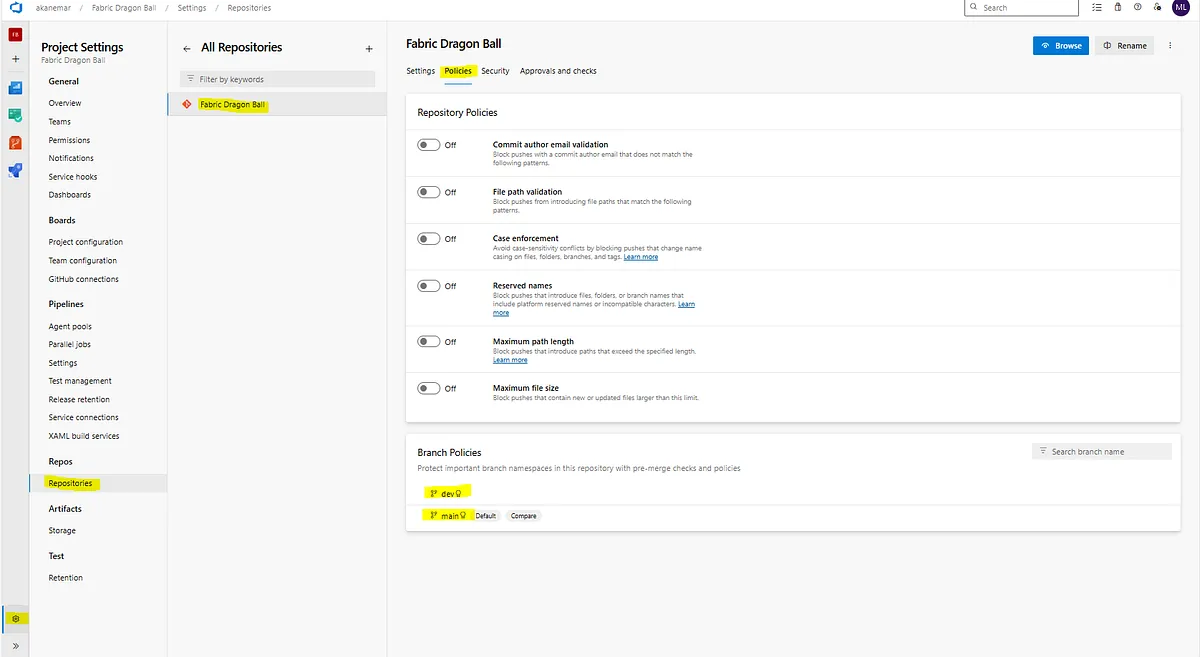 And from here we’ll select the branch we want to configure
You have the option to apply these policies to every branch of every repository in your project.
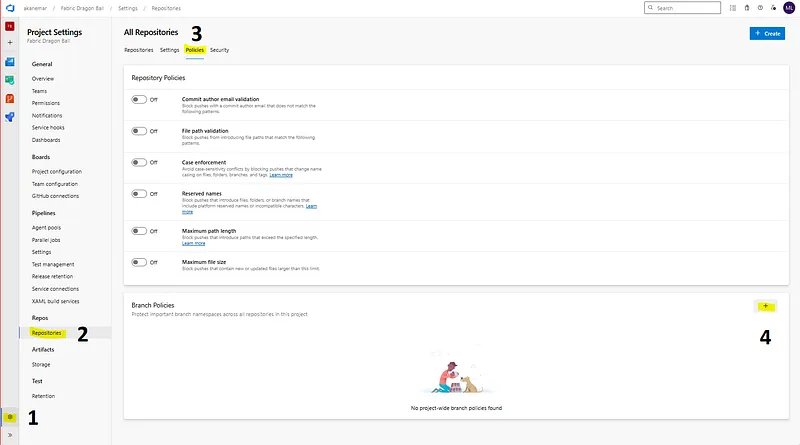 With this option you configure the policies for all branches in the project
- For
mainanddev, click the three dots (...) and select Branch policies.
The main branch: 🛡️ Maximum protection
No room for error here.
👥 Require a minimum number of reviewers: set 1–2 reviewers. Here you have additional settings about who can or can’t approve changes. For this example we’ll turn on “Prohibit the most recent pusher from approving their own changes”.
📋 Check for linked work items: this setting forces you to have a Boards item linked.
💬 Check for comment resolution: with this check we make sure every comment left on the Pull Request is resolved (or at least marked as resolved).
✅ Build Validation (the part we care about most): add a policy using your ado-pipe-build pipeline.
- Policy requirement: the key! Set it to Required. If the build fails, the PR can’t be completed.
- Display name: e.g. “Quality Gates Check (Main)”.
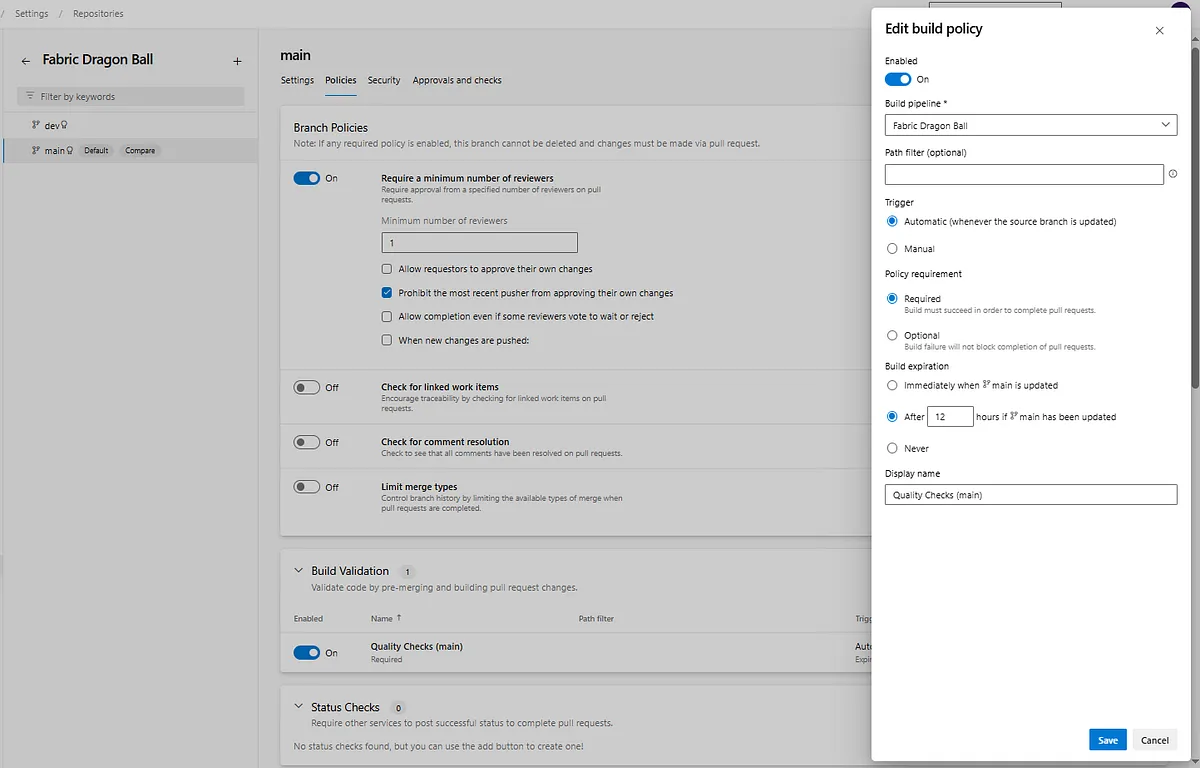 It should end up looking something like this
🔍 Automatically include reviewers: here we’ll set the person responsible for the development so they give the final OK.
The dev branch: 🔄 Controlled flexibility
We validate, we report, but we allow moving forward under supervision.
👤 Require a minimum number of reviewers: you can be more flexible (e.g. 1 reviewer). “Prohibit the most recent pusher from approving their own changes” is still recommended.
✅ Build Validation: add a policy using your ado-pipe-build pipeline.
- Policy requirement: the difference! Set it to Optional. The build will run and show errors, but won’t block the merge on its own. The final decision lies with the reviewers.
- Display name: e.g. “Quality Check (Dev)”.
🔍 Automatically include reviewers: this setting takes centre stage here: we need a responsible person to decide whether a development with errors moves on to the next phase or not.
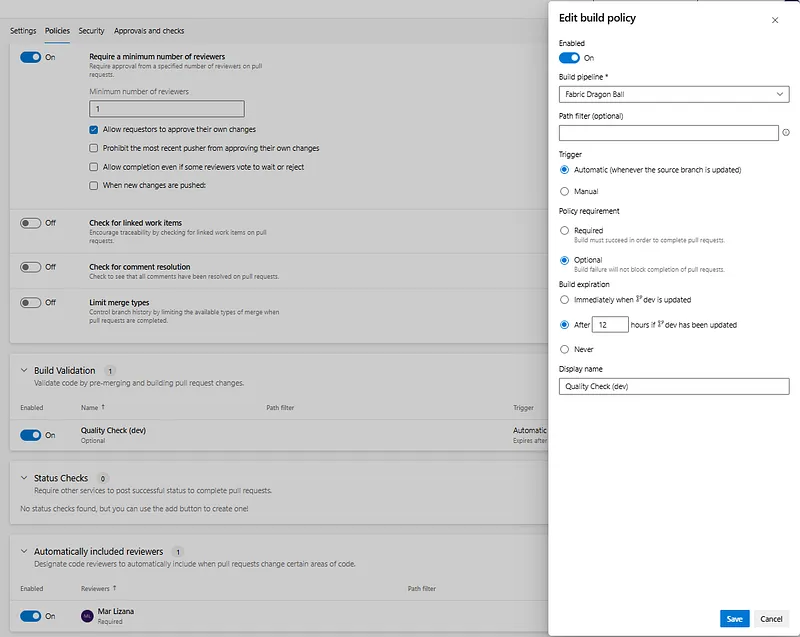
Yes, here’s your video for this part :)
🚀 Your quality control in Azure DevOps is ready!
And that’s it! With these steps, you’ve turned Azure DevOps into a robust system that not only runs your quality validations automatically, but also applies different levels of strictness to your main and dev branches. You’ve laid the groundwork for safer, more consistent and more agile development.
Now every Pull Request will face scrutiny worthy of the gods ⚡, making sure only the highest-quality code reaches production, while you keep the flexibility you need in your development environments.
Found it useful? Clap, no account needed. You can clap more than once.
Comments