🧭 Beginner’s guide: Bursting, Smoothing and Throttling in Microsoft Fabric
(or how Fabric decides when to give you a turbo boost, when to send you the bill for the party and when to tell you «chill out, sweetie»)
TL;DR: Bursting = turbo, smoothing = temporary debt, throttling = the brake when you get carried away. Understanding this trio is the ABC of optimizing costs, performance and CU consumption in Microsoft Fabric.
Microsoft Fabric capacity management can feel like magic… or like the tax office. Bursting gives you extra power when your Power BI reports, dataflows or notebooks are going full throttle; smoothing turns that boost into a deferred payment so your bill doesn’t cry; and throttling shows up when your capacity says “that’s as far as we go”. If you know how these three dance together, you can avoid scares, tune workloads and keep your capacity under control.
In this guide I explain, in a clear and practical way, how the concepts I just mentioned work in Microsoft Fabric (bursting, smoothing and throttling), how each one affects performance and cost, how to measure your real CU consumption, and which official tools you can use to monitor your capacities and make more efficient decisions.
What a CU is in Microsoft Fabric and why it matters
In Fabric, the trick is that storage and compute travel on separate roads: OneLake is paid per GB and compute per CU, which is the real unit of power that Fabric consumes and adjusts as if it were a hyperactive bandwidth meter.
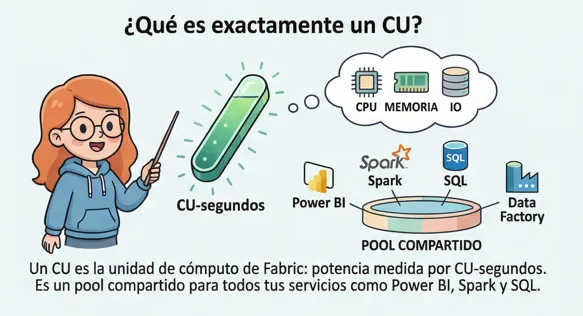 What a CU is in Microsoft Fabric. AI-generated image
The journey starts with the fundamental concept: the CU is an abstract unit of compute that you rent from Microsoft and that works as the internal currency to run your workloads, processes and everything else you have in Fabric.
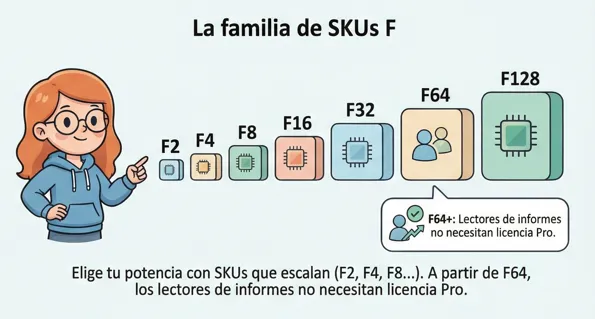 Microsoft Fabric capacities. SKUs. AI-generated image
Capacity sizes are sold in the F family (F2, F4, F8, F16, etc.), and what you really pay for isn’t the capacity itself but CU-seconds. All your engines (Power BI, Spark, SQL, Data Factory) share the same capacity pool, which lets some free up resources while others consume them. Fabric decides internally how to split it.
Let’s take an example: the Microsoft Fabric F32 capacity is defined by having 32 capacity units (CU). To calculate the total number of capacity units available in an hour, you multiply the capacity’s CUs by the number of seconds in an hour (3,600 seconds). So, on an F32, we’ll have a total of 115,200 CUs to consume in an hour (32×3,600).
Also, Fabric capacity is generally consumed in 30-second intervals (called timepoints). On an F32, you could use 32×30=960 CUs in each 30-second interval.
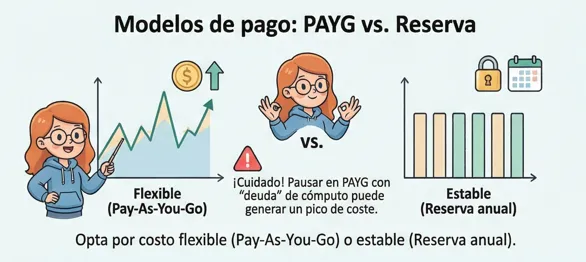 Payment models for Fabric capacities. AI-generated image
When it comes to paying, you can go for a flexible Pay-As-You-Go model, where you only pay for what you use, or an annual reservation model, cheaper but less flexible. And yes, there’s a hidden gem: from F64 up, users who only view reports don’t need a Pro license. On top of that, remember that the capacity size only covers compute; OneLake storage is billed separately. And yes: even Copilot spends CUs.
Fabric combines all of this to decide whether it can give you a turbo boost, whether it charges you later or whether it has to stop you in your tracks. Understanding this dance between timepoints, workload types and decoupled costs is what makes the difference between a capacity that flows and one that leaves you wondering “who ate my CUs?”
What if I need more than my F32’s 115,200 CUs per hour for my processes?
How Microsoft Fabric capacities work
Fabric doesn’t work like a rigid old-school server. Instead of collapsing when you go over your purchased power, it responds dynamically: it lends you more when you need it, balances things out when it can and stops you when you’re getting too carried away. That logic is the basis of the three key mechanisms: bursting, smoothing and throttling.
Bursting in Microsoft Fabric: what it’s really for
 Bursting in Microsoft Fabric: what it’s really for. AI-generated image
The first thing to understand is that Fabric doesn’t restrict you to the power you’ve purchased. If an engine needs more CUs to run faster, Fabric lends them to you for a few seconds or minutes. And yes, this really happens: if you have a 32 CU capacity and Spark decides it needs 96 CUs for a few seconds to go like a rocket, Fabric gives them to you without blinking. You don’t see any “turbo on” buttons. It’s automatic.
The practical result is simple: something that should take 40 seconds takes 10. And you’re happy… until it’s time to read the fine print.
Smoothing: how CU debt gets paid off
When is smoothing applied?
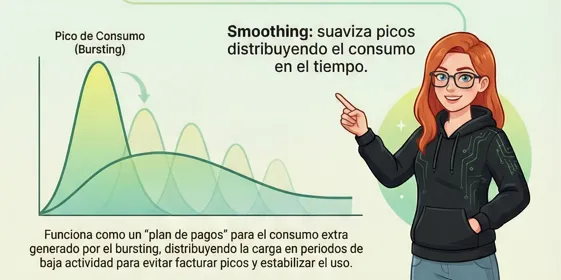 Smoothing: how CU debt gets paid off. AI-generated image
When Fabric gives you that turbo, it creates a temporary debt. That is, if you used 96 CUs when you had 32, you consumed 64 CUs too many. That isn’t billed directly, but it doesn’t disappear either. This is where smoothing comes in, a system that “spreads” that debt into the future as long as there’s capacity available.
For interactive workloads (Power BI, SQL, quick queries) smoothing is spread over the next five minutes. For background workloads, like Spark notebooks or pipelines, the debt is spread over 24 hours. That time lets Fabric offset the excess power during low-load periods.
This is key: smoothing is always applied when there’s bursting. It’s neither negotiable nor optional. And it’s not “bad” either. Quite the opposite: it prevents a one-off load from forcing you to buy a bigger capacity just to survive a specific peak.
Throttling in Fabric: when it happens and how to avoid it
 Throttling in Fabric: when it happens and how to avoid it. AI-generated image
The problem shows up when the smoothing debt grows faster than Fabric can offset it. If future capacity can’t absorb the excess, Fabric goes into self-protection mode. And that’s when the dreaded throttling appears, which isn’t a punishment but a mechanism to stop the capacity from collapsing.
Throttling doesn’t hit all at once; it comes in stages. At first you’ll only notice small delays when running new interactive queries. If the debt keeps rising, Fabric starts rejecting interactive queries, although it still allows background loads. At the highest stage, when the debt is so big that you’d need 24 hours of free capacity to pay it off, all new workloads are rejected, both interactive and batch.
The most expensive trap: pausing the capacity while you have debt
Here comes one of the most common mistakes, and the most expensive one if you’re on Pay-As-You-Go. If right after a bursting peak you decide to pause the capacity, smoothing stops completely. And when it stops, Fabric settles all the debt immediately, which creates a gigantic consumption spike right at the moment of the pause.
On reserved F SKUs this isn’t billed as an extra cost (it just looks ugly in the metrics). But on pay-as-you-go capacities, that spike translates directly into money. Or tears, depending on the case.
And this is when the round of existential questions we all ask the first time begins…
How do I know if a capacity is being throttled?
How do I measure real CU consumption?
Let’s get to it.
How to monitor capacities in Microsoft Fabric
Fabric offers several paths: the Capacity Metrics App, which is perfect for understanding what happened over the last two weeks, and the Fabric Toolbox, the CAT team’s true Swiss army knife. Capacity Metrics lets you see peaks, smoothing, bursts and throttling quickly, but it doesn’t give you historical context or advanced breakdowns. With the Fabric Toolbox, on the other hand, you can store long-term data and really analyse it. FCA (Fabric Cost Analysis) helps you understand cost and consumption, and FUAM (Fabric Unified Admin Monitoring) gives you a complete view as an admin, among other tools and accelerators. If you’re going to work seriously with capacities, the Toolbox isn’t optional.
How to keep your Microsoft Fabric capacity in check (without losing CUs or your patience)
1) Start with the basics: plan without fear
Before getting your card out, go through the capacity estimator and get an idea of how many CUs you’ll need. Then make the most of the trial: it comes with an F4 (and you can scale it up to F64), so migrate your heaviest report and your heaviest semantic model and see how it breathes.
If your workload runs flat out more than 60% of the time, the annual reservation will save you a nice chunk. If not, Pay-as-you-go and pause when it makes sense.
2) Watch the capacity like your cat when you’re away for a few days
Install the Capacity Metrics App (admins only), review the consumption of the last few days and set up alerts in the portal so you don’t find out about the disaster too late. If you need long history or chargeback, use FUAM.
3) Understand where the scares come from
This is the heart of the matter and I’ll never get tired of repeating it:
- Bursting: Fabric gives you turbo when you need it, but charges you later in comfortable (or not so comfortable) instalments via smoothing.
- Interactive: users opening reports with intense DAX measures at the same time = red peaks = pain. Look at the Capacity Metrics Compute page and Timepoint page to understand what’s going on.
- Background: refreshes, notebooks, dataflows… they consume and Fabric spreads it over 24h. Use the Timepoint page to see how much debt you’re carrying and who generated it.
4) Optimize without losing the spark
- If you can choose, pro-code > low-code in consumption: PySpark usually beats dataflows or pipelines.
- Implement incremental loads, avoid unnecessary full refreshes and optimize your reports (especially measures and cardinality).
- On Pay-as-you-go you can pause, but careful: if you have accumulated debt, you’re charged all of it when you stop. If you only have light activity, it’s better to scale down than to hit the red button.
5) Set limits before things blow up
Throttling is your safety net. Know the rules of the game:
- 10 min of debt: 20 s delays for interactive loads.
- 60 min of debt: interactive loads start getting rejected.
- 24h of accumulated debt: nothing gets in, neither interactive nor background, until credit is freed up.
Conclusion
Fabric isn’t chaotic; it’s actually quite predictable. It has its rules, its cycles and its self-protection mechanisms. If you understand how it lends you power, how it charges you for it and how it stops you when you go overboard, you start using the capacity in your favour instead of fighting it.
And all of this, if you monitor it well, saves you from nasty surprises.
Microsoft Fabric doesn’t want to annoy you. It wants you to learn to drive it without burning the engine. Once you master it, the platform stops being a mystery and starts behaving like what it is: an intelligent on-demand power system that you can govern sensibly. Understanding it doesn’t just prevent scares: it turns you into the person on the team who finally knows why Fabric behaves the way it does.
Want to see in more detail how to monitor your capacity? Leave me a comment and I’ll prepare an article on Capacity Metrics, FUAM and FCA.
Useful links
Found it useful? Clap, no account needed. You can clap more than once.
Comments